
We’ve all been there. You create the perfect AI image. It’s beautiful. It’s crisp. It’s… sitting there doing absolutely nothing. In a world of scrolling thumbs, a static image is basically a polite “please ignore me” sign.
Enter Canva Magic Studio’s Image to Video. It’s the tool for people who want video engagement but have the video editing patience of a toddler on espresso.
What is this sorcery?
It’s an AI feature that looks at your flat, boring JPEGs and says, “I can make that move.” No timelines, no keyframes, no sweating over “ease-in” settings. It adds cinematic zooms, object motion, and that “expensive documentary” feel with one click.
Canva Magic Studio: Image to Video
Images used to be the end of the creative process.
You generate a visual.
Export it.
Publish it.
Done.
But now, one image can easily become multiple formats.
Social post.
Presentation visual.
Short video.
That’s where Magic Studio → Image to Video inside Canva becomes very interesting.
Because instead of creating video from scratch, you start with something you already have.
And make it move.
What is Magic Studio Image to Video?
Inside Canva’s Magic Studio, the Image to Video feature allows you to animate a static image using AI.
Instead of manually building animation, the tool generates motion automatically based on the visual or based on a prompt.
Possible motion effects include:
- camera zoom
- scene movement
- object motion
- subtle cinematic feel
- animated storytelling moment
The result is a short video clip created from one image.
No timeline editing required.
Why this feature matters
Many workflows already rely heavily on images.
AI generated visuals
illustrations
concept graphics
social media visuals
But platforms increasingly prioritize motion.
Video formats attract more attention and often perform better in feeds.
Which creates a small but frequent problem:
You have the visual.
But you don’t necessarily want to build a full video.
Image to Video bridges that gap.
Minimal effort.
Additional format.
Where to find the feature
Inside Canva:
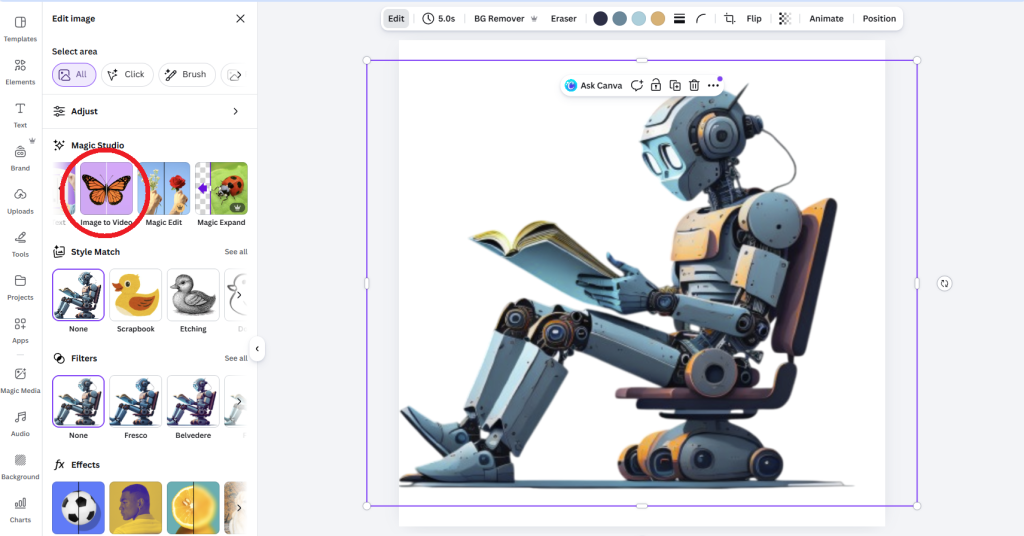
Upload image → select image → Edit → Magic Studio → Image to Video
You can then choose:
- automatic animation
- prompt-based animation
Which allows either quick results or more control.
Our Test
We tested the feature using a robot illustration from our website.
Step 1 – upload the image
Step 2 – select the image and click Edit
Step 3 – locate Magic Studio → Image to Video
Step 4 – choose between automatic animation or describing the animation
We tried both options.
Automatic animation
When Canva generated the animation automatically, the result included a subtle zoom and movement of the book pages visible in the scene.
The visual immediately felt more dynamic.
Our robot illustration suddenly felt alive.

Prompt-based animation
We also tested prompt-based animation.
We described the motion:
robot closes the book and looks toward the camera
The result was impressively natural.
There is a small visual glitch with the long talking part at the end, but overall the result is very strong considering everything is generated from a single static image.
What stands out most is how easily intention can be added to a visual.
Instead of simply showing an illustration, the image now communicates action.
Which makes the visual feel more narrative-driven.

When this is useful
social media visuals
newsletter graphics
website visuals
simple storytelling
presentation visuals
concept demonstrations
Especially when the goal is to create light motion without building a full video workflow.
What problem this solves
Video production often takes more time than the message requires.
Sometimes you only need:
subtle motion
visual variation
short attention grabber
more dynamic format
AI reduces the effort required to produce these micro-animations.
Which encourages experimentation.
Bigger picture
Magic Studio shows how quickly creative formats are merging.
The same visual can now exist as:
image
animation
video
presentation asset
without starting from zero each time.
Which reduces friction between idea and output.
Final verdict
Magic Studio Image to Video is not meant to replace video editing tools.
It is meant to extend the usefulness of existing visuals.
And it does that very well.
Small motion can significantly increase visual engagement.
And when that motion takes seconds to generate, it becomes easy to test multiple variations.
LMAI scale
Magic Studio’s Image to Video feature is extremely easy to use and produces visually engaging results with minimal effort. Minor glitches may appear in more complex movements, but overall the tool delivers strong value for creators who want to quickly transform static visuals into short videos. LMAI rating: 5/5