


Let’s be honest.
When someone says “PowerPoint presentation,” we don’t usually think of smooth cinematic motion, elegant transitions, or something that looks like it was edited in After Effects.
We think: slides. Click. Next slide. Click again.
But there’s one small feature in PowerPoint that completely changes that feeling: Merge / Morph transition.
And once you start using it properly, your presentation suddenly stops looking like a slideshow and starts looking like a video.
Lately, our social feeds have been full of short videos showing how to make a presentations that look more like mini movies than slides. Smooth camera moves, text gliding across the screen, images zooming in and out like they were edited in After Effects.
Is this AI?
Is this some new video tool?
Or is PowerPoint for years quietly leveling up while we weren’t paying attention?
Honestly, we’re not even sure if this feature counts as “AI” — but we are sure of one thing: the algorithm clearly knows about our love for PowerPoint. These videos keep finding us. Again and again. And once you notice them, you can’t unsee them.
What Is the Merge (Morph) Transition?
Morph is a transition that smoothly animates objects between slides instead of just cutting from one slide to the next.
Instead of:
- text popping in
- images jumping around
- awkward slide changes
you get:
- smooth camera-like movement
- zooms
- object transformations
- motion that feels intentional
It’s the closest thing PowerPoint has to real video animation — without opening After Effects.
Why It Feels Like Video Editing (Not Slide Editing)
Here’s the trick:
You design two slides that are almost the same, but with small changes.
For example:
- Slide 1: big title in the center
- Slide 2: same title, smaller, moved to the top
- Add Morph transition
→ PowerPoint animates the movement automatically.
The same works for images, icons, shapes, charts even screenshots.
You’re not animating manually.
You’re letting PowerPoint “merge” the difference between two states.
That’s why it looks cinematic.
Before we jump into our own quick example, we want to share a YouTube video that shows just how creative this feature can be. The video walks through five different visual effects you can achieve using PowerPoint’s Morph transition — from smooth zooms and camera-like movements to text and image transformations that look more like motion design than slide design.
We know it can look a bit overwhelming at first. All that movement, all those smooth transitions — it feels like something only motion designers would touch.
But once you understand the logic behind Morph, step by step, something funny happens: you start using it everywhere. It’s one of those features that quickly becomes addictive.
So don’t overthink it.
Just dare to try these three simple steps — and then take it from there.
Try It Yourself: PowerPoint Morph (Step by Step)
Step 1 – Create your first slide
Design your slide normally:
- add a full-screen image
- place your headline where you want it
- keep it clean and simple
This is your starting point.
Step 2 – Duplicate the slide
Right-click the slide and choose Duplicate Slide.
Now you have two identical slides.
Step 3 – Change the second slide slightly
On the duplicated slide:
- zoom into the image or move it
- move the headline to a new position
- resize elements if needed
You’re creating a second “state” of the same slide.
Step 4 – Apply the Morph transition
Select the second slide.
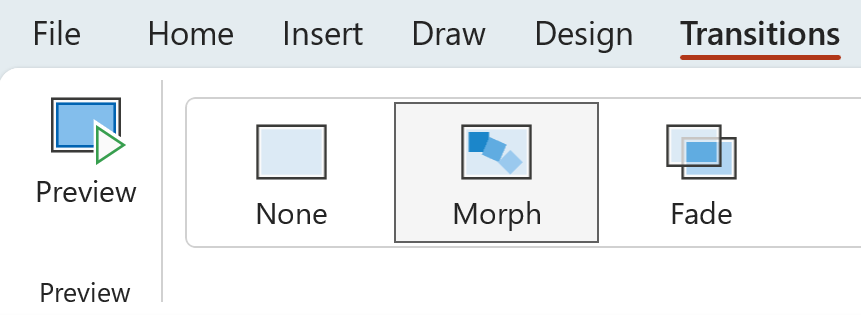
Go to Transitions → Morph.
Set the duration to around 0.3–0.8 seconds for a smooth effect.
Congratulations!
You now own a secret PowerPoint superpower.
From now on, every normal transition will feel boring. Every slide will beg for Morph. And you may never look at “Fade” the same way again.
Your slides will look like they took hours in After Effects, while you quietly know the truth: it was three duplicated slides and one transition.
Use this power wisely. Or not. We fully support Morph addiction.